Deploy Phoenix App on Seenode | Phoenix Hosting & Deployment Guide
Deploy your Phoenix app on Seenode with a simple setup. Follow our quickstart guide to configure, connect Git, and go live in minutes.
This guide explains how to deploy your existing Phoenix application on seenode.
Prerequisites
Before you begin, ensure you have:
- A seenode account at seenode.com
- Git configured on your machine
- Existing Phoenix project ready to deploy
Configure for seenode Deployment
Production Configuration
Your service must listen on the same port that you configure in the Port field for the web service. Choose a port (for example, 80 or 8080) and use it both in your Phoenix config and in the dashboard.
For a framework-agnostic explanation of how ports work on seenode, see Configuring Your Application’s Port.
import Config
config :hello, generators: [timestamp_type: :utc_datetime]
# Configures the endpointconfig :hello, HelloWeb.Endpoint, url: [host: System.get_env("PHX_HOST") || "localhost", port: 80], adapter: Bandit.PhoenixAdapter, render_errors: [ formats: [html: HelloWeb.ErrorHTML, json: HelloWeb.ErrorJSON], layout: false ], pubsub_server: Hello.PubSub, live_view: [signing_salt: "Kute9Cn2"], http: [port: 80], server: trueBuild Script
Create a build.sh script to streamline deployments:
#!/usr/bin/env bash# exit on errorset -o errexit
# Initial setupmix local.hex --forcemix local.rebar --force
# Install dependenciesmix deps.get --only prod
# Compile and build assetsMIX_ENV=prod mix compileMIX_ENV=prod mix assets.buildMIX_ENV=prod mix assets.deploy
Make the script executable: chmod +x build.sh
Deploy on seenode
Push to Git
Commit your project and push it to GitHub or GitLab.
Create a Web Service
From the seenode Dashboard, create a new Web Service and connect the Git repository for your Phoenix application.
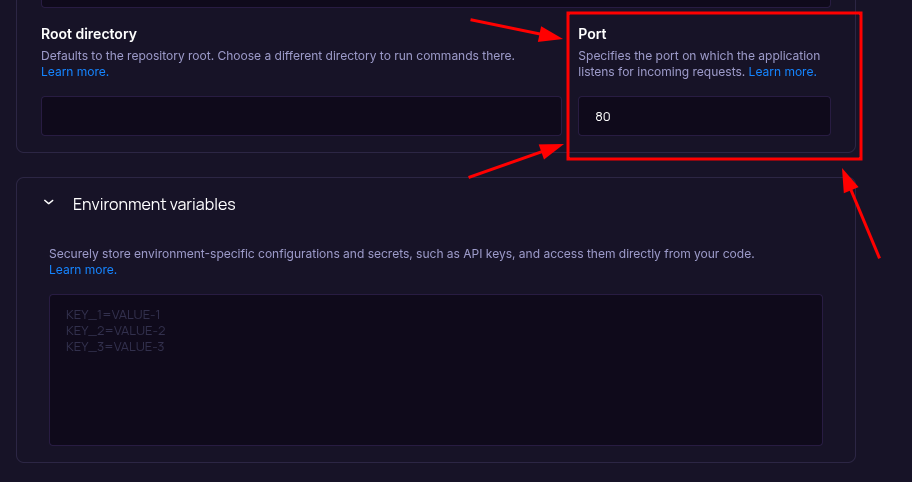
Set the Port field (above Environment Variables) to the value your Phoenix app listens on (for example,
80or8080). Ensure yourconfig/prod.exsuses the same port in thehttp: [port: …]setting. The field starts empty, so set it before your first deploy. After the service is created, you can change the port from the project’s Settings tab. You do not need to add aPORTenvironment variable.Configure Build & Start Commands
seenode automatically detects an Elixir project. Configure the build and start commands:
Build Command (choose one approach):
Option A: using the provided script:
build.sh ./build.shOption B: direct commands:
Terminal mix local.hex --force && mix local.rebar --forcemix deps.get --only prodMIX_ENV=prod mix compileMIX_ENV=prod mix assets.buildMIX_ENV=prod mix assets.deployStart Command:
Terminal MIX_ENV=prod mix phx.serverConfigure Port and Environment Variables
Add any additional environment variables your application needs, such as:
SECRET_KEY_BASE: generate locally withmix phx.gen.secret(required for production)
Choose Pricing Tier
Select your preferred instance size and click Create Web Service.
Deploy
Click Create Web Service and watch logs until your web service is live.
Success
Once complete, your Phoenix app is live and accessible at your service’s public URL.
Prefer configuring environment variables later? Open the service dashboard’s Environment tab and add
SECRET_KEY_BASEthere, although completing it in the prior step keeps the deploy smoother.
::::tip[Troubleshooting] If your deployment fails, the first place to check is the Logs tab in your seenode service dashboard. Build and runtime logs often contain valuable information for diagnosing issues.
Port configuration mismatch
- On seenode, there is no default container port. Ensure your application listens on the port you configured in the Port field.
- Adjust in framework config if needed (for example, in
config/prod.exs, updatehttp: [port: 80]to match the Port field value). - Seeing a 502 Bad Gateway? Your app may not be listening on the expected port.
Common Issues:
OTP Version Problem (Linux-specific)
- Error: Your system’s Erlang/OTP was too old and missing functions Phoenix needed (
:public_key.cacerts_get/0). - Fix: Install a newer OTP (via
asdfor manual build) so Phoenix and esbuild can work.
Wrong Build Process
- Error: You were building Phoenix but not doing it in a way that works for seenode’s deploy (wrong script, missing prod build steps).
- Fix: Adjusted build command to properly compile dependencies, assets, and release for production.
Missing SECRET_KEY_BASE
- Error: Phoenix needs a secret key for signing and encryption. It wasn’t set in the deployment environment.
- Fix: Generate one (
mix phx.gen.secret) and set it as an environment variable in seenode before starting the app. ::::
Starting from Scratch?
If you don’t have a Phoenix project yet:
Option 1: Use our Template (Recommended)
Phoenix Template
Deploy a minimal Phoenix application designed for zero-configuration deployment.Option 2: Create from Phoenix Docs + seenode Setup
Follow the official Phoenix documentation to create a new project, then return here for seenode-specific deployment steps.
seenode-Specific Setup Steps:
- Install Phoenix:
mix archive.install hex phx_new - Create project:
mix phx.new your_project - Configure production settings
- Create build script
Next Steps
Now that your Phoenix app is deployed, here are some recommended next steps:
Set up a Custom Domain (Coming Soon)
Configure a custom domain to point to your new web service.Connect to a Database
Instantly scaffold and connect PostgreSQL and MySQL databases